

The short answer: to change your wifi password, sign in to your router's admin page or app, open the wireless settings, enter a new password and save, then reconnect your devices.
- Two passwords to change: the network password and the router admin password
- Find your router's login details on its label
- Find a saved password on Windows, Mac, iPhone or Android
- Keep a record of your network details
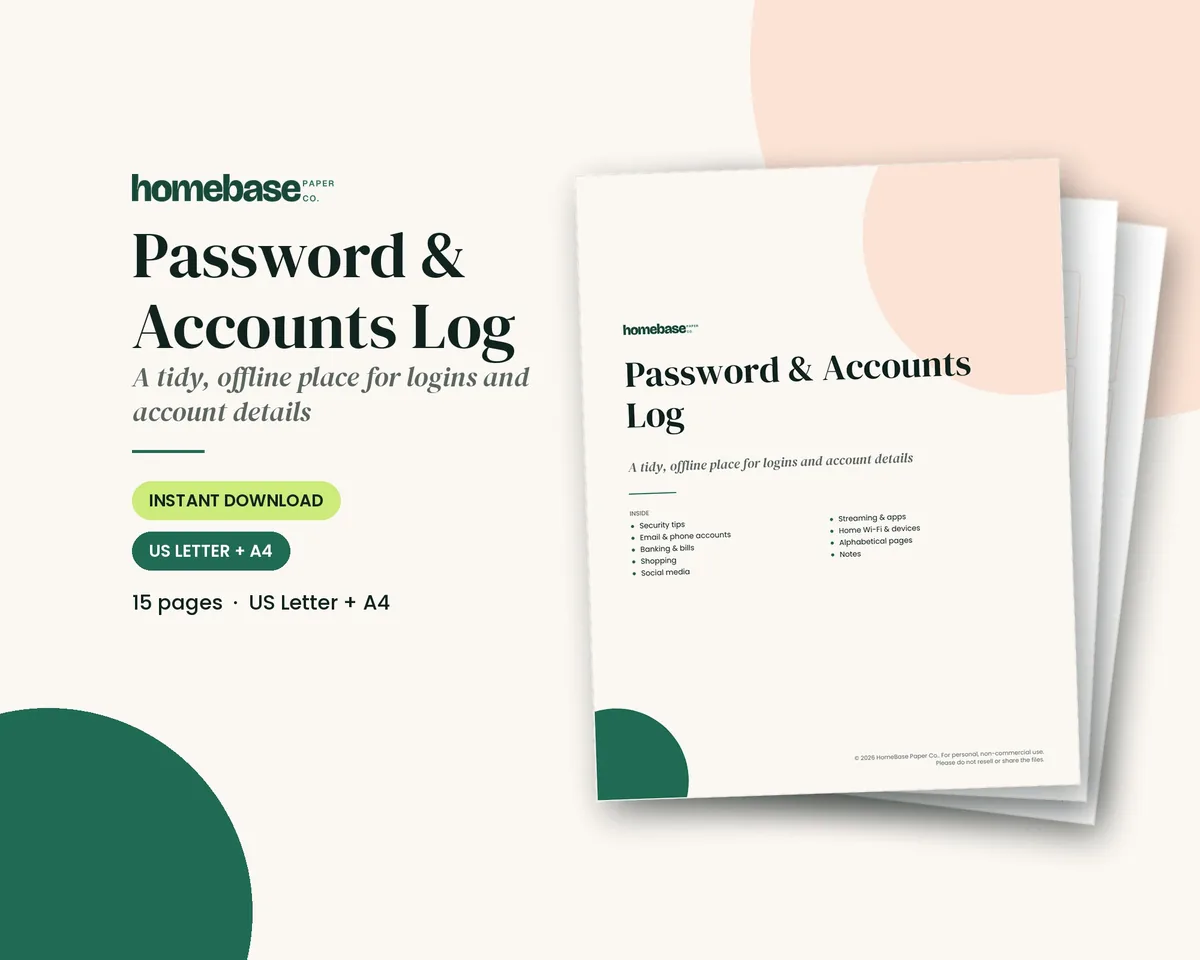
- Next step: Plan it with the Password & Accounts Log ($3.99).
To change your wifi password, sign in to your router's settings through its admin web page or app, open the wireless settings, enter a new password and save, then reconnect your devices. The FTC's guide to securing your home Wi-Fi network points out that there are really two passwords to change: the Wi-Fi network password and the router's admin password. Below is how to change both, how to find wifi password details you have forgotten, how to share access safely and what else to check while you are in the settings.
How to change wifi password in 7 steps
The menus vary by brand, but the steps are the same on almost every router.
- Find your router's login details. CISA notes in its home network security guidance that default settings are often printed on a label on the device. Look for an address such as 192.168.1.1, or an app name.
- Connect to the network. Use a computer or phone on your Wi-Fi, or plug in with a cable.
- Sign in. Type the address into a browser or open the app, and enter the admin username and password.
- Open the wireless settings. They may be called Wireless, Wi-Fi, WLAN or Security.
- Enter the new password. It may be labeled password, passphrase, network key or pre-shared key. Pick WPA3 Personal, or WPA2 Personal if WPA3 is not offered.
- Save and restart if asked. Your devices will disconnect.
- Reconnect every device with the new password.
If your internet provider supplied the router, its app or account page may have a "change Wi-Fi password" option. The FTC suggests searching for how to change your router manufacturer's Wi-Fi password if the menus do not match.
Choose a strong wifi password
CISA's advice on strong passwords is to make each one long, random and unique. For Wi-Fi:
- use at least 16 characters, such as four or five unrelated words;
- do not use your address, pet's name or phone number;
- do not reuse your email or banking password;
- use a different password for the guest network.
Once you've picked the new password, write it down somewhere private at home along with the router's admin login. Our printable password tracker guide shows how to log Wi-Fi and device logins next to your other accounts.
How to find wifi password on each device
If you forgot the password, a device that is already connected can usually show it.
| Device | Where to look |
|---|---|
| Router | Label on the bottom or back (default password only) |
| Windows | Network & internet settings > Wi-Fi > your network's properties, or Wireless Properties > Security > Show characters |
| Mac | Passwords app or System Settings > Wi-Fi, or Keychain Access on older versions |
| iPhone or iPad | Settings > Wi-Fi > tap (i) next to the network > Password |
| Android | Settings > Network > Wi-Fi > tap the network > Share (shows a QR code, often with the password) |
| Router admin page | Wireless or Security settings |
You may need to confirm with your device passcode, Face ID or fingerprint. If none of these work, most routers can be reset to factory settings with a reset button, and then you set everything up again from the label.
How to share your wifi password
- QR code: Android and many router apps show a QR code that a guest scans with their camera.
- Apple devices: an iPhone can usually offer to share the password with a nearby Apple device that has you in its contacts.
- Guest network: the FTC suggests a separate guest network so visitors and smart gadgets stay off your main network. Share that password instead.
What else to change while you are in the settings
The FTC and CISA suggest a short list of extra steps:
| Setting | What to do |
|---|---|
| Router admin password | Change it from the default |
| Network name (SSID) | Change it to something that does not identify you |
| Encryption | Use WPA3 or WPA2 Personal, not WEP or WPA |
| Router software | Update it, and turn on automatic updates if offered |
| Remote management, WPS, UPnP | Turn off if you do not use them |
| Firewall | Make sure it is on |
| Connected devices | Look for any you do not recognize |
| Admin session | Log out when finished |
Troubleshooting after a password change
A few problems come up often after changing the password:
- A device will not reconnect. Tell it to "forget" the network, then join again and type the new password carefully. Passwords are case-sensitive.
- Smart home gadgets drop off. Plugs, cameras, doorbells and thermostats usually need their own app to rejoin. Some need a reset first.
- The printer stops printing. Most printers have a Wi-Fi setup menu on the control panel or in the maker's app.
- You are locked out of the admin page. If you changed the admin password and forgot it, a factory reset is usually the only way back in. Afterwards, set up the network name and password again.
- Two networks show up. Many routers broadcast separate 2.4 GHz and 5 GHz networks. Update the password on both, or turn on a single combined network if your router offers it.
- The internet provider's app still shows the old password. Refresh the app or sign out and back in. Some apps take a few minutes to sync.
Make a list of every connected device before you start. It turns a frustrating evening into a ten-minute job.
How to change wifi name (SSID)
The network name, also called the SSID, is usually on the same settings screen as the password.
- Sign in to the router's admin page or app.
- Open the Wireless or Wi-Fi settings.
- Find the Network Name or SSID field. Some routers show one for 2.4 GHz and one for 5 GHz; others have a single combined network.
- Type the new name. CISA suggests a name that does not reveal your identity or address. Skip your surname, house number and router brand.
- Save. Every device drops off and has to join the new name.
Tip: change the name and the password at the same time, so you only reconnect your devices once. The reverse also works: if you replace your router and give the new one exactly the same network name, password and security type as the old one, most devices reconnect on their own.
How to reset router: restart or factory reset?
"Reset" can mean two very different things. Pick the one you actually need.
| Option | When to use it | What happens to your settings | How |
|---|---|---|---|
| Restart (power cycle) | Slow, dropping or no internet | Nothing changes | Unplug the modem and router, wait about 30 seconds, plug in the modem first, then the router once the modem is online |
| Restart from the app | Same as above, from your phone | Nothing changes | Many router and provider apps have a Restart button |
| Factory reset | Forgotten admin password, or starting over | Everything is erased, and the network name and password go back to the label defaults | Hold the small reset button, often with a paperclip, for the time your manual gives, usually several seconds |
After a factory reset, sign in with the details on the label, change the admin password, set a new network name and wifi password, and check for a software update. Some gateways supplied by an internet provider need the provider's help to get back online after a factory reset, so check its support page first.
How to see wifi password on iPhone and Android
- iPhone or iPad (iOS 16 or later): open Settings > Wi-Fi, tap the (i) next to the network, then tap Password and confirm with Face ID, Touch ID or your passcode. You can copy it from there.
- iPhone with iOS 18 or later: the Passwords app also has a Wi-Fi section listing networks you have joined, with the option to show the password or a QR code.
- Android: open Settings > Network & internet (or Connections) > Wi-Fi, tap the gear or the network name, then Share. After you confirm your screen lock, a QR code appears, and many phones show the password in text below it.
These only work for a network the phone has already joined. If no device remembers the network, plug a computer into the router with a cable and read the password from the admin page.
When to change your wifi password
- When you set up a new router or move into a home with an existing one.
- When a roommate, former partner or tenant who had the password moves out.
- After giving the main password to a contractor, babysitter or visitor instead of the guest network.
- If your router's device list shows something you do not recognize.
- If the password is short, or it is the default from the label.
Keep a record of your network details
Most households only touch router settings every few years, which is exactly why the login details get lost. The Password & Accounts Log ($3.99, printable PDF) has 15 pages, including a Home Wi-Fi & devices page where you can note your network name, guest network and the devices you will need to reconnect after a change. If you would rather have a bound book, the Password Logbook (Paperback) ($9.99, sold on Amazon) is a 6 x 9 inch, 120-page large-print book with A to Z tabs, 312 entries and extra pages for home Wi-Fi and devices. Many people write hints rather than full passwords and keep the book somewhere private.
For more, see our page on the large print password book for seniors, the emergency binder checklist for where to keep it, and the printable home inventory list for recording your devices.
Make it easier
Tools for this
Affiliate links: we may earn a small commission. As an Amazon Associate we earn from qualifying purchases. Details.
Printables
Password & Accounts Log
Organized by category and A-Z, with room for hints instead of full passwords.
Paperback planners
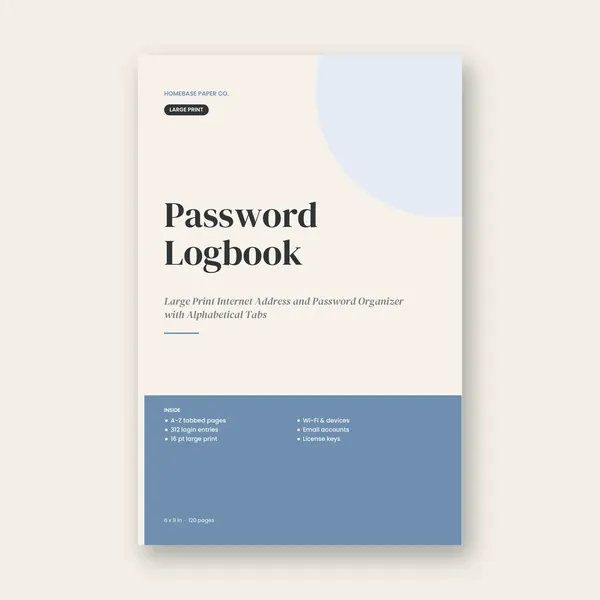
Password Logbook (Paperback)
Large Print Internet Address and Password Organizer with Alphabetical Tabs
Paid link. As an Amazon Associate we earn from qualifying purchases.
Frequently asked questions
How do I change my wifi password? To change your wifi password, sign in to your router's admin page (often by typing an address like 192.168.0.1 or 192.168.1.1 into a browser) or open your router or internet provider's app, go to the Wireless or Wi-Fi settings, type a new password in the password or passphrase field and save. Then reconnect each device with the new password.
How to find wifi password if I forgot it? To find a forgotten wifi password, check the label on your router first, since many routers print the default network name and password there. If it was changed, look on a device that is already connected: Windows Wi-Fi properties, Mac Keychain Access or the Passwords app, iPhone Settings > Wi-Fi > (i), or Android's share QR code option.
How do I share my wifi password with a guest? The easiest way to share a wifi password is with a QR code or your phone's built-in sharing. On Android, open the network in Wi-Fi settings and tap Share to show a QR code. On iPhone, a nearby Apple device in your contacts can get a share prompt when it tries to join. A guest network keeps visitors off your main network.
What is the difference between my wifi password and my router password? Your wifi password lets devices join your wireless network, while your router admin password lets someone sign in and change the router's settings. The FTC says to change both from their defaults. If someone has your admin password, they can change your wifi password and other settings, so make that one strong too.
What is a good wifi password? A good wifi password is long and unique, ideally at least 16 characters, such as a random string or a passphrase of several unrelated words. CISA recommends long, random, unique passwords. Avoid your address, family names or phone number, and turn on WPA3 or WPA2 encryption so the password actually protects the network.
How often should I change my wifi password? Change your wifi password when you first set up the router, whenever someone you no longer trust has it, and if you see devices on your network you do not recognize. There is no need to change a strong, private password on a fixed schedule. CISA suggests watching your network for unknown devices.
Will changing my wifi password disconnect my devices? Yes, changing your wifi password disconnects every device that used the old one, including smart speakers, TVs, cameras and printers. Each device needs the new password. Before you change it, list your connected devices so none are forgotten. The Password & Accounts Log has a Home Wi-Fi & devices page for exactly this.
What is the default router login address? The default router login address is usually printed on the router's label and is often 192.168.0.1, 192.168.1.1 or 10.0.0.1. Many newer routers use an app instead. The FTC suggests searching for how to change your router brand's Wi-Fi password if you are unsure, so you follow your exact model's steps.
Can I change my wifi password from my phone? Yes, you can usually change your wifi password from your phone, either in your router or internet provider's app or by opening the router's admin address in your phone's browser while connected to Wi-Fi. Mesh systems in particular are set up through an app. Sign in, open Wi-Fi settings, change the password and save.
Should I change the wifi network name too? Yes, it is a good idea to change the wifi network name (SSID) from the default. The FTC and CISA both suggest it, and CISA recommends a name that does not reveal your identity or address. A default name can also hint at your router brand, which makes it easier to guess default admin settings.
Where should I write down my wifi password? Write your wifi password somewhere private at home, such as a password book kept in a drawer, rather than on a sticky note on the router. The Password Logbook (Paperback) ($9.99, sold on Amazon) is a 6 x 9 inch, large-print book with A to Z tabs and extra pages for home Wi-Fi and devices.
What else should I do after changing my wifi password? After changing your wifi password, update your router's software, change the default admin password, check that WPA3 or WPA2 encryption is on, and turn off features you do not use such as remote management and WPS. The FTC also suggests setting up a guest network and logging out of the admin page when you are done.
How do I change my wifi name? To change your wifi name, sign in to your router's admin page or app, open the Wireless or Wi-Fi settings, type a new name in the Network Name or SSID field and save. Every device then disconnects and must join the new name. CISA suggests a name that does not reveal who you are or where you live.
How do I reset my router? You can reset your router without losing settings by restarting it: unplug the modem and router, wait about 30 seconds, plug in the modem, then the router. A factory reset, done by holding the small reset button for the time your manual gives, erases everything and returns the network name and password to the label defaults.
Does resetting my router change the wifi password? Not if you only restart it: unplugging the router and plugging it back in keeps your network name and password. A factory reset does change it, because it returns the router to the default network name and password printed on its label. You would then need to set your own password again and reconnect every device.
How do I see my wifi password on iPhone? To see your wifi password on an iPhone with iOS 16 or later, open Settings > Wi-Fi, tap the (i) next to the network, tap Password and confirm with Face ID, Touch ID or your passcode. On iOS 18 and later, the Passwords app also has a Wi-Fi section that lists the networks you have joined.
How do I find my wifi password if no device is connected? If no device is connected, check the label on the router first, since it shows the default password if it was never changed. Otherwise, plug a computer into the router with an Ethernet cable, sign in to the admin page and read the password in the Wireless settings. As a last step, a factory reset returns it to the label default.
More from HomeBase
You may also like
Printables
Household Binder
Family info, emergency plan, calendars, meals, groceries, cleaning, bills and sitter notes.
Printables
Cleaning Schedule
Daily, weekly, monthly and seasonal lists - plus a family chore chart.
Printables
Home Maintenance Log
Monthly, seasonal and annual checklists plus a record of every appliance and repair.
Printables
Home Inventory
Printable pages and a spreadsheet that totals the value of every room.
 Club
Monthly club
Planner & Calendar Club
Anyone who wants a monthly calendar, bill calendar and meal plan ready to print.
Free printable
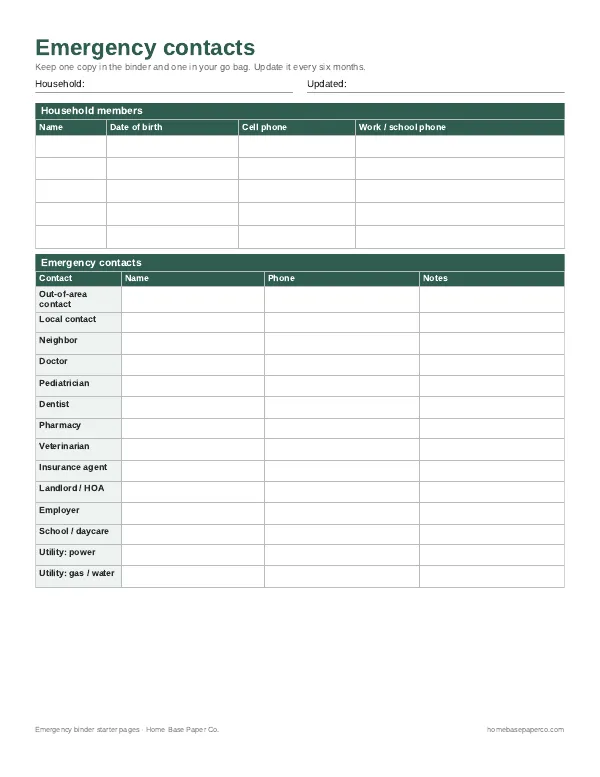
Have the important stuff in one place: get the free emergency binder pages
Printable starter pages for household members, emergency contacts, medical notes and where key documents live. You'll also get our weekly HomeBase email with simple ways to keep family records and important papers in order.
Sources
- How to secure your home Wi-Fi network (FTC) consumer.ftc.gov
- Home network security (CISA) cisa.gov
- Use strong passwords (CISA) cisa.gov