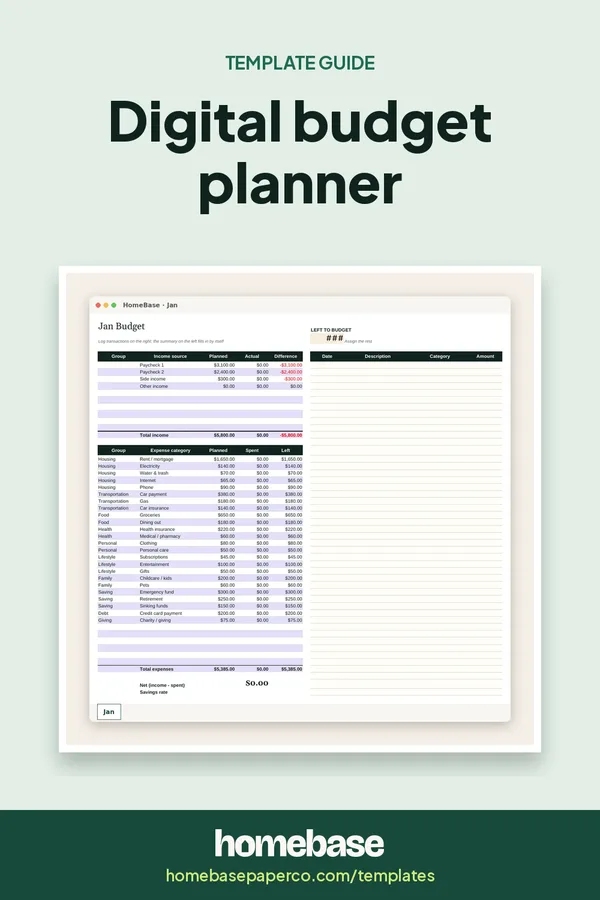
The short answer: A digital budget planner is a budget you keep on a screen, and the most practical kind for most households is a spreadsheet: you enter your plan and your spending, and it does the adding, shows planned vs. actual and flags categories that run over. Google Sheets is free and easy to share between two people; Excel works offline. Either way, you don't need to link a bank account.
This page compares the three kinds of digital budget planners, shows how to set one up and helps you pick a budgeting style. One honest note up front: our digital planners are spreadsheets, not hyperlinked GoodNotes-style planners.
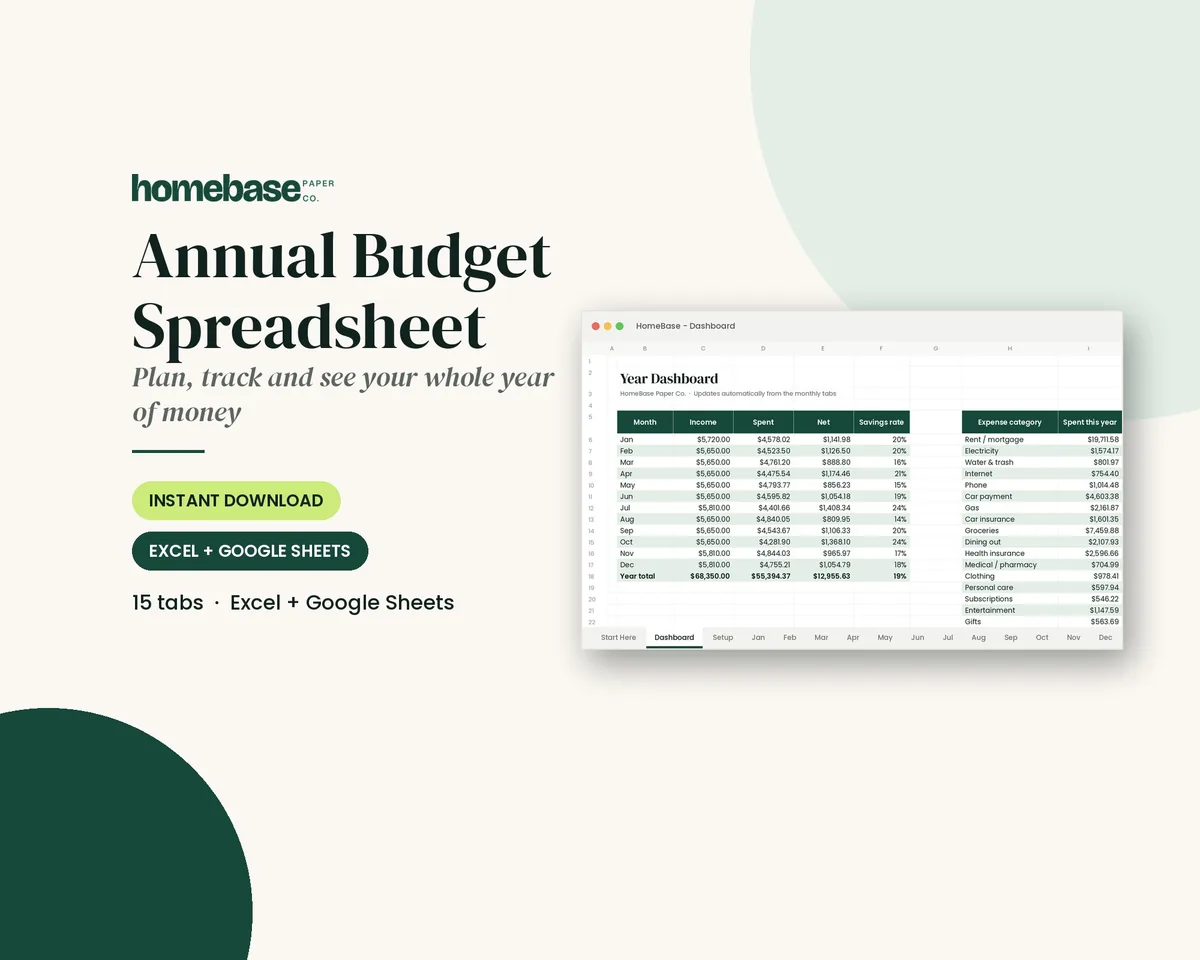
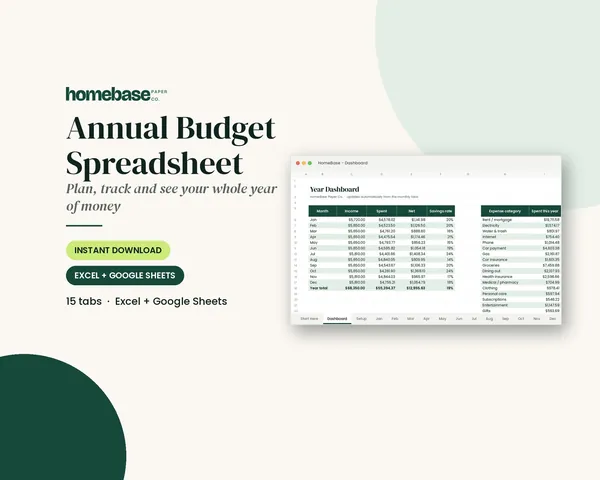
What's included in the Annual Budget Spreadsheet
- Start Here guide
- Setup tab: your categories & plan
- 12 monthly tabs (Jan-Dec)
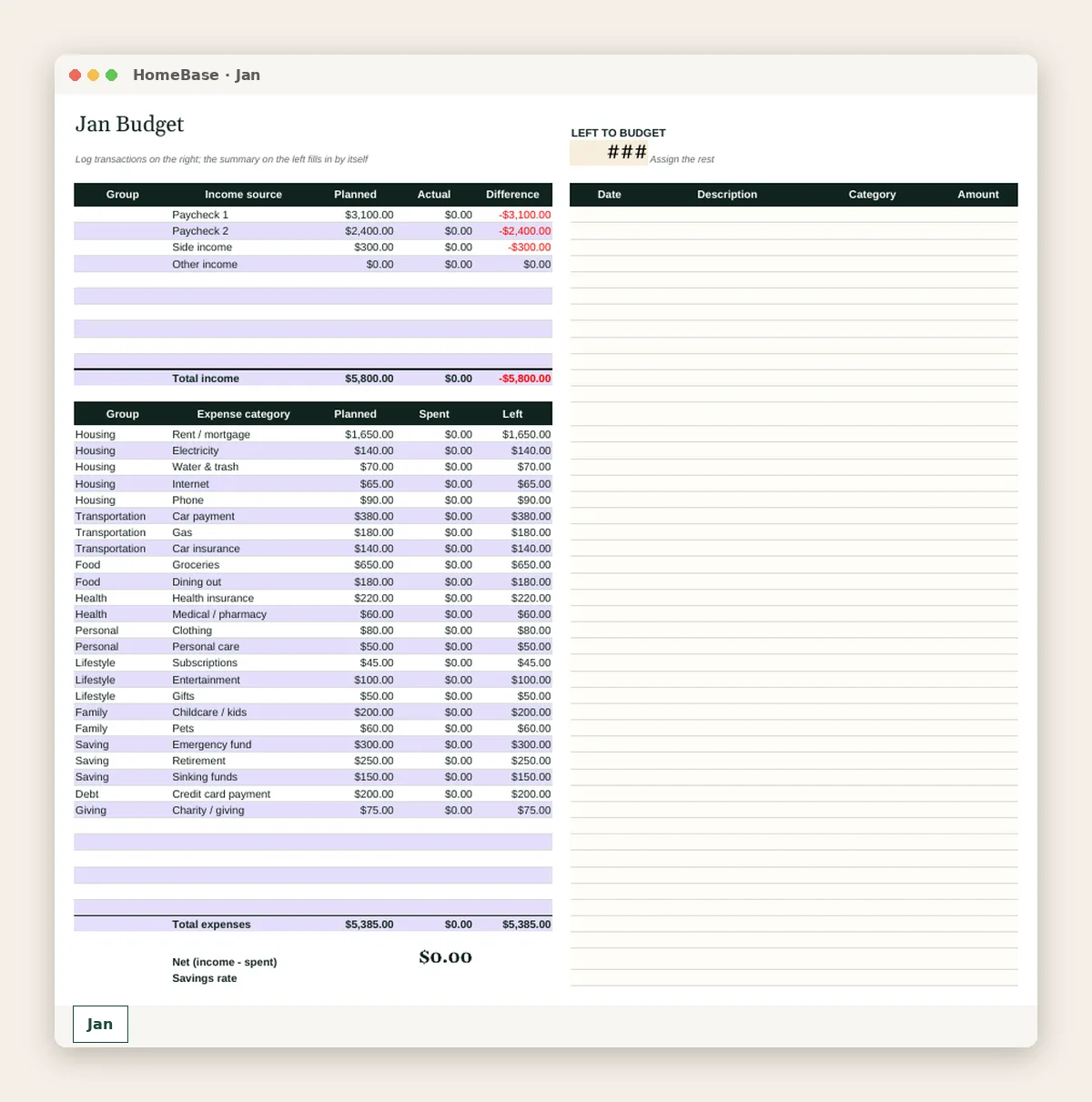
- Transaction log with category dropdowns
- Planned vs. actual by category
- Over-budget alerts in red
- Year dashboard + chart
- Works in Excel & Google Sheets
Spreadsheet (Excel + Google Sheets), $6.99. Instant download; nothing is shipped. See every page on the product page.
Who it's for
- People who want the adding done for them and alerts when a category runs over.
- Couples who share a budget from two phones or laptops.
- Anyone who tried a paper planner and stopped because the math took too long.
- People who don't want to link bank accounts to a budgeting app.
- Not the right fit if you want a hyperlinked GoodNotes planner: ours are spreadsheets, not tablet planners (see the FAQ).
How to set up a digital budget planner, step by step
- Choose your tool. Decide between Excel, Google Sheets or both. Google Sheets is free and easy to share; Excel works offline. Our spreadsheets work in either.
- Open the Start Here tab. Read the short guide first. It shows which cells to fill in and which ones calculate for you.
- Set up your categories. On the Setup tab, enter your income, your bills and your spending categories, then a planned amount for each one.
- Log transactions as you go. Add purchases to the transaction log with the date, amount and category. A dropdown keeps the categories consistent.
- Check the dashboard weekly. Once a week, look at planned vs. actual. Categories that run over turn red, so you can see them at a glance.
- Share it, if you budget together. Upload the file to Google Drive and share it with your partner so you both update the same planner.
- Review the month and roll forward. At month end, adjust next month's plan based on what really happened, then start the next monthly tab.
Three kinds of digital budget planners
| Type | Best for | Watch out for |
|---|---|---|
| Spreadsheet (Excel or Google Sheets) | Automatic totals, sharing, full control, no bank login | You enter transactions yourself |
| Tablet PDF planner | Writing by hand with a stylus | No math; you still add things up yourself |
| Budgeting app | Automatic transaction imports | Often a subscription and a bank connection |
If you're not sure whether you're a paper or screen person, our paper vs. digital planner guide can help.
What a good digital budget planner does
- Adds everything up so you never total a column by hand
- Shows planned vs. actual for each category, every month
- Flags overspending with color as soon as a category goes over
- Uses dropdowns so categories stay consistent
- Summarizes the year on one dashboard with a chart
- Works on a phone for quick entries and on a laptop for reviews
The Annual Budget Spreadsheet does all of that, with 12 monthly tabs and a year dashboard.
Pick a budgeting style
Planned vs. actual by category. Set a planned amount for each category and compare. It's the most common approach and the easiest to start with. Our annual budget template guide explains it.
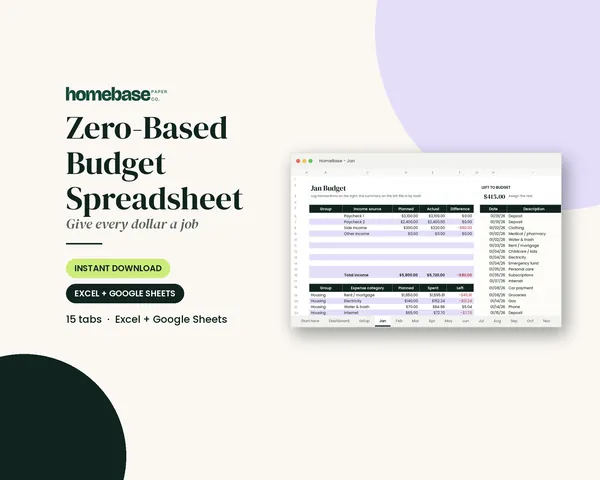
Zero-based. Give every dollar of income a job until "left to budget" hits zero. It's great when money is tight or you're paying off debt. See the Zero-Based Budget Spreadsheet.
Paycheck-based. Match each bill to the paycheck that covers it. It works well if you're paid weekly or every two weeks.
Making it stick
Most digital budgets fail for the same reason paper ones do: nobody looks at them. Pick one evening a week to log anything you missed and check the dashboard. If you budget with a partner, share the file and review it together once a month. For a household with shared bills, see our household budget template guide, and if you want to start by watching your spending for a month, use the spending tracker guide. Our comparison of printables and spreadsheets and the rest of our templates can help too.
Ready to use
Digital budget planners that work in Excel and Google Sheets
Spreadsheets
Annual Budget Spreadsheet
See exactly where your money goes every month - without complicated software.
Spreadsheets
Zero-Based Budget Spreadsheet
The 'Left to budget' counter turns green when every dollar has a job.
 Save 57%
Bundles
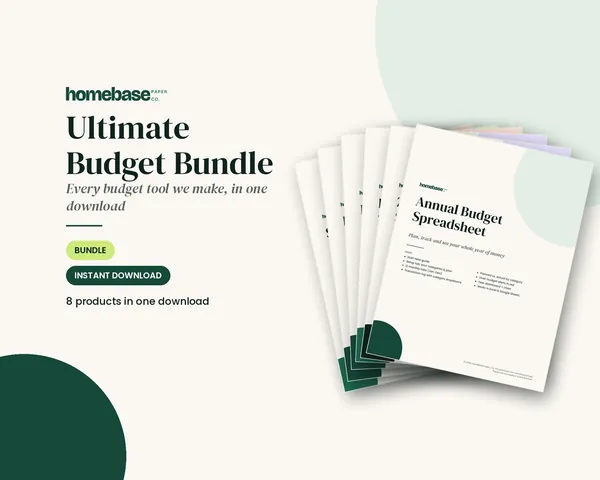
Ultimate Budget Bundle
All 6 spreadsheets + both printable planners - for less than half the price of buying them separately.
Frequently asked questions
What is a digital budget planner? A digital budget planner is any budget you keep on a screen instead of paper. Usually it's one of three types: a spreadsheet (Excel or Google Sheets) that does the math, a PDF planner you write on with a stylus in a tablet app, or a budgeting app that links to your bank. Ours are spreadsheets.
Are your digital budget planners GoodNotes planners? No, HomeBase digital budget planners aren't GoodNotes planners: they're Excel and Google Sheets spreadsheets, not hyperlinked tablet planners. If you want to write by hand on a tablet, you can import our Budget Planner Printable PDF into a note-taking app that lets you write on PDFs, but it isn't hyperlinked and it won't add anything up.
Is a spreadsheet better than a budgeting app? A spreadsheet is the better choice if you want a one-time purchase that never needs your bank login, while an app suits people who want transactions imported for them. Apps can import transactions automatically, but many need a bank connection or a subscription. A spreadsheet is a one-time purchase, doesn't need your bank login and is fully yours to change, but you enter transactions yourself. Many people find that typing them in is what keeps them paying attention.
Can I use a digital budget planner on my phone? Yes, you can use a digital budget planner on your phone. Upload the spreadsheet to Google Drive and open it in the Google Sheets app, or use the Excel app. Logging a purchase on a phone takes a few seconds; the dashboards are easier to read on a laptop.
Do I need Excel to use these planners? No, you don't need Excel to use these planners. They work in Google Sheets, which is free with a Google account. If you have Excel, they work there too.
Which digital budget planner should I choose? If you want to plan a whole year with planned vs. actual by category, choose the Annual Budget Spreadsheet. If you want to give every dollar a job each month, choose the Zero-Based Budget Spreadsheet, which has a "left to budget" counter. If you're paid every week or two and want bills matched to paychecks, look at the Paycheck Budget Spreadsheet. The Ultimate Budget Bundle includes all three plus five more.
Can two people share a digital budget planner? Yes, two people can share a digital budget planner. In Google Sheets, use the Share button to give your partner edit access. You'll both see the same numbers, and changes show up for both of you.
Is my budget data private in a spreadsheet? Your budget data stays in a file you control, and HomeBase spreadsheets don't connect to your bank. If you keep it in Excel on your computer, it stays there. If you use Google Sheets, it's stored in your Google Drive under your account's privacy settings. Our spreadsheets don't connect to your bank.
How is a digital budget planner different from a printable one? A printable is something you write in by hand, which helps some people notice their spending. A digital planner adds it up, flags overspending and is easy to share. Our guide to budget planner printables vs. spreadsheets goes deeper.
Can I customize the categories? Yes, you can customize the categories. Change category names and planned amounts on the Setup tab, and the monthly tabs and dashboard update to match.
What if the spreadsheet won't open for me? Email us within 14 days of your order. If the file won't open or isn't what the product page described, we'll fix it or replace it, and refund you in full if we can't make it work. We're also happy to walk you through setup.
Free printable
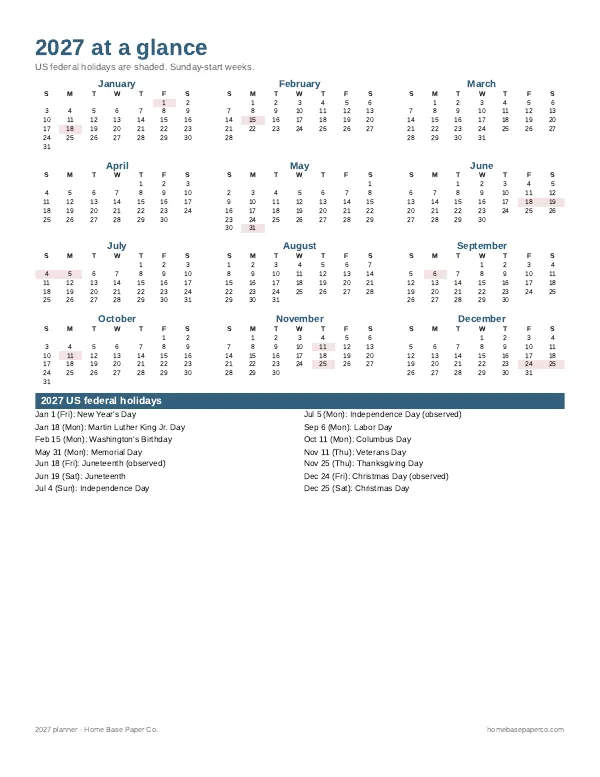
Get organized for the new year: get the free 2027 planner
A 16-page printable 2027 planner with a year-at-a-glance page and monthly calendars with US holidays marked. You'll also get our weekly HomeBase email with simple planning and home organization tips.