

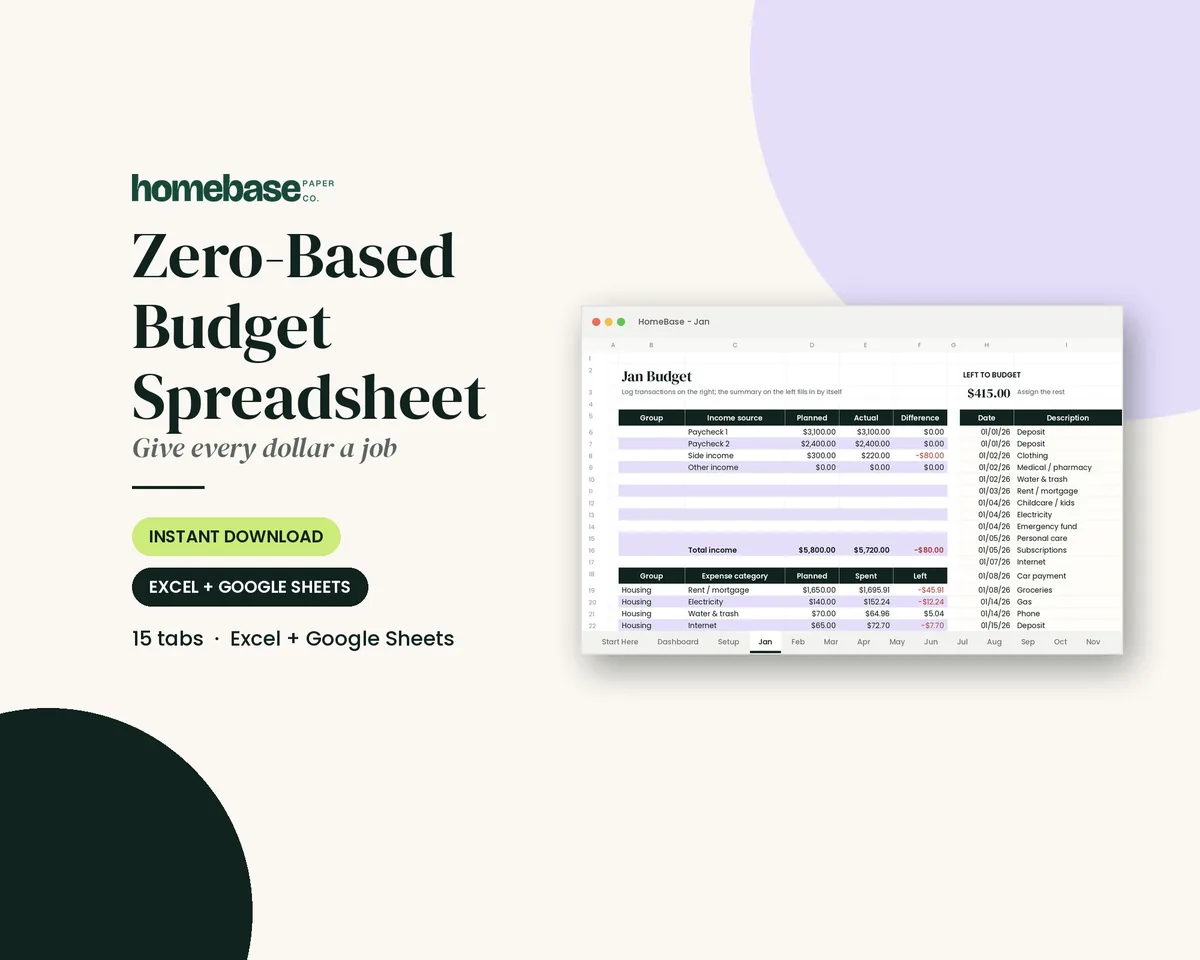
The short answer: to create a budget spreadsheet, list your monthly income and spending categories with a planned amount for each, log what you actually spend on a second tab and let two formulas do the rest.
SUMIFtotals spending by category, and planned minus actual shows what's left.
- Three tabs: Setup, Transactions and Budget
- Gather first: take-home pay, fixed bills and one or two months of bank and card statements
- Works in Excel or Google Sheets
- Extras: dropdowns, red alerts and a "left to budget" cell
- Next step: Plan it with the Zero-Based Budget Spreadsheet ($6.99).
To create a budget spreadsheet, open a blank workbook in Excel or Google Sheets, list your monthly income, list your spending categories with a planned amount for each, log what you actually spend on a second tab, and let two formulas do the rest: SUMIF totals your spending by category, and planned minus actual shows what's left. That's the whole idea. Everything else, like dropdowns, red alerts and a "left to budget" cell, just makes it easier to keep up.
Want the finished version instead? Our Zero-Based Budget Spreadsheet (Excel and Google Sheets) has 12 monthly tabs, a transaction log with dropdowns, planned vs. spent vs. left columns and a 'Left to budget' counter on every month.
This guide shows how to make a budget spreadsheet from scratch in about an hour, with the exact formulas, a filled-in example and the mistakes that make most homemade budget spreadsheets stop working by March. If you'd rather skip the build, there's a short section at the end on ready-made budget spreadsheets that already have all of this set up.
What a budget spreadsheet needs
A working budget spreadsheet doesn't need to be fancy. It needs three tabs that each do one job.
| Tab | What goes on it | Why it matters |
|---|---|---|
| Setup | Your income sources and your category list | One place to change a category name so it updates everywhere |
| Transactions | Every purchase or bill paid: date, description, category, amount | The raw record; you add to it a few times a week |
| Budget | Each category's planned amount, actual spending and what's left | The view you check; formulas fill in most of it |
If you only build one thing, build the Budget tab. But the Transactions tab is what keeps the numbers honest. Without it, "actual" turns into a guess.
Before you open the spreadsheet: gather your numbers
The Consumer Financial Protection Bureau's step-by-step budgeting guide starts in the same order a good spreadsheet does: where your money comes from, where it goes, which bills are due when, and then the working budget that pulls it all together. The CFPB also calls logging your spending the "heaviest lift," so it's worth gathering numbers before you type a single formula.
Pull these together first:
- Take-home pay for one month, from your last two or three pay stubs or deposits. Use what actually lands in your account, not your salary.
- Fixed bills: rent or mortgage, utilities, phone, insurance, car payment, subscriptions and minimum debt payments.
- One or two months of bank and card statements, so you can see what you really spend on groceries, gas and eating out.
- Your savings goals, such as an emergency fund, a holiday fund or extra debt payments.
If you're not sure which categories to use, start with our budget categories list and trim it to the 10 to 15 that fit your household.
How to make a budget spreadsheet in 8 steps
These steps work the same way in Microsoft Excel and Google Sheets. Where the menus differ, both are listed.
Step 1: Create the workbook and name three tabs
Open a blank workbook. Rename the first tab Setup, add a second called Transactions and a third called Budget. Short names with no spaces make the formulas easier to type later.
Step 2: List your income on the Setup tab
In column A, type each income source: "Paycheck 1," "Paycheck 2," "Side work" and so on. Put the monthly take-home amount in column B. Under the list, add a Total income cell with =SUM(B2:B5), adjusting the range to match your rows.
If your pay changes month to month, use a low but realistic month. Our guide to budgeting with irregular income explains how to pick that baseline.
Step 3: List your categories
Still on Setup, type your category names in a column, one per row: Rent, Utilities, Groceries, Gas, Dining out, Emergency fund and so on. Keep the names short and spelled exactly the same way every time. The formulas match on the text, so "Groceries" and "Grocery" count as two different categories.
Group them in a sensible order: housing and bills first, then everyday spending, then savings and debt. That's the order you'll want to read them in.
Step 4: Build the Transactions tab
On Transactions, put four headers in row 1:
| A | B | C | D |
|---|---|---|---|
| Date | Description | Category | Amount |
Then add a dropdown to column C so every entry uses a real category name. In Google Sheets, select column C and choose Insert > Dropdown, then point it at your category list on the Setup tab. In Excel, use Data > Data Validation, choose List, and select the same range. This one step prevents most of the errors that break homemade budget spreadsheets.
Enter amounts as positive numbers. A $48.20 grocery run is 48.20, not -48.20.
Step 5: Set up the Budget tab
On Budget, add these headers in row 1: Category, Planned, Actual and Left. Copy your category names into column A, starting at A2. Then type your planned monthly amount for each one in column B.
This is the part that takes real thought. Start with fixed bills, which are easy. Then set realistic amounts for flexible spending based on your statements, and give savings and debt their own rows so they're planned rather than whatever's left over.
Step 6: Let SUMIF fill in your actual spending
In C2 on the Budget tab, type:
=SUMIF(Transactions!C:C, A2, Transactions!D:D)
In plain English: look down the Category column on the Transactions tab, find every row that matches this category, and add up those amounts. Copy the formula down the column, and every category fills itself in as you log purchases. Both Microsoft's SUMIF guide and Google's SUMIF help page use the same three parts: the range to check, what to match, and the range to add.
Step 7: Add "Left" and "Left to budget"
In D2, type =B2-C2 and copy it down. A positive number means money is still available in that category; a negative number means you've overspent it.
Then add one more cell above or below the table called Left to budget:
=Setup!B6-SUM(B2:B20)
Use your own Total income cell and planned-amount range. This shows income minus everything you've planned. If it's above zero, you have dollars without a job. If it's below zero, you've planned more than you earn. If you follow a zero-based budget, your goal is exactly zero.
Step 8: Make overspending turn red
Select column D on the Budget tab. In Google Sheets, choose Format > Conditional formatting, set the rule to "Less than" 0 and pick a red fill. In Excel, choose Home > Conditional Formatting > Highlight Cells Rules > Less Than, type 0 and pick a red format. Now any category you've overspent jumps out the moment you open the file.
The formulas in one place
| What you want | Formula (Excel and Google Sheets) | Where it goes |
|---|---|---|
| Total income | =SUM(B2:B5) |
Setup tab, under your income list |
| Actual spent in a category | =SUMIF(Transactions!C:C, A2, Transactions!D:D) |
Budget tab, column C |
| Left in a category | =B2-C2 |
Budget tab, column D |
| Left to budget | =Setup!B6-SUM(B2:B20) |
Budget tab, one cell |
| Total planned or total spent | =SUM(B2:B20) or =SUM(C2:C20) |
Budget tab, bottom row |
| Actual for one month only | =SUMIFS(Transactions!D:D, Transactions!C:C, A2, Transactions!A:A, ">="&DATE(2027,1,1), Transactions!A:A, "<"&DATE(2027,2,1)) |
Budget tab, if you keep a full year of transactions on one tab |
If you rename a tab with a space in it, wrap the name in single quotes, like 'Jan Spending'!C:C.
A filled-in example
Here's what a finished month can look like for a household bringing home $4,200. These numbers are made up for illustration, but the math is real. The plan gives every dollar a job, so Left to budget is $0.
| Category | Planned | Actual | Left |
|---|---|---|---|
| Rent | $1,450 | $1,450 | $0 |
| Utilities | $220 | $236 | −$16 |
| Phone and internet | $140 | $140 | $0 |
| Car payment | $310 | $310 | $0 |
| Gas | $160 | $142 | $18 |
| Car insurance | $130 | $130 | $0 |
| Groceries | $600 | $648 | −$48 |
| Dining out | $150 | $185 | −$35 |
| Household | $90 | $74 | $16 |
| Emergency fund | $300 | $300 | $0 |
| Sinking funds | $200 | $200 | $0 |
| Extra debt payment | $250 | $250 | $0 |
| Fun money | $200 | $165 | $35 |
| Total | $4,200 | $4,230 | −$30 |
The spreadsheet tells the story fast: groceries and dining out ran over by $83 combined, gas, household and fun money came in $69 under, and the month ended $30 over plan. Next month, this household might move $50 from fun money to groceries rather than pretending the grocery number will shrink on its own.
Excel vs. Google Sheets: does it matter?
Not much. Every formula above works in both. The differences are mostly about where you use the file.
If neither appeals, our comparison of the best budgeting apps covers five app options and what each costs in a year.
| Google Sheets | Microsoft Excel | |
|---|---|---|
| Cost | Free with a Google account | Included with Microsoft 365; a free web version is available with a Microsoft account |
| Sharing with a partner | Easy; both people edit the same live file | Works through OneDrive sharing |
| Phone use | Good for quick entries in the app | Good in the app, best on a computer |
| Dropdown menu | Insert > Dropdown | Data > Data Validation |
| Red alerts | Format > Conditional formatting | Home > Conditional Formatting |
If you budget with a partner, a shared Google Sheet is hard to beat. Our guide to a family budget meeting covers how to review it together without it turning into an argument.
Mistakes that break homemade budget spreadsheets
I'm the oldest of three, and I've always been the one my family leans on to keep everyone's plans straight. If there's one thing I've learned about any system for tracking things, it's that it only works if it's easy to keep up with. These are the problems that usually make people quit:
- Typing categories by hand. One typo and that spending vanishes from the total. Use the dropdown from Step 4.
- Mixing negative and positive amounts. Pick one sign for spending and stick with it, or
SUMIFwill cancel numbers out. - Budgeting your gross salary. Plan with take-home pay, after taxes and deductions.
- Leaving out irregular bills. Car registration, annual subscriptions and holidays wreck a month that didn't plan for them. Spread them out with sinking funds.
- Ignoring bill timing. A monthly budget can balance while one paycheck still comes up short. If you're paid every two weeks, see our paycheck budget planner guide.
- Waiting until month-end to log spending. Ten minutes two or three times a week beats an hour of digging through statements.
- Overbuilding. Charts and color themes are nice, but they don't help if the Transactions tab is empty. Get the basics working first.
How to keep it going month to month
Once the first month works, copying it forward is simple:
- One tab per month: right-click the Budget tab, duplicate it, rename it for the next month, clear the Actual column's source data (or start a new Transactions tab) and adjust planned amounts.
- One tab for the year: keep all transactions on a single tab and use the
SUMIFSdate formula from the table above to pull each month's actuals. - A monthly review: at the end of each month, look at the red cells, move money between categories for next month, and check that Left to budget is back to zero or close to it.
If you want a full-year view, our guide to an annual budget template shows how to plan the big, once-a-year costs before they arrive. Rather start from a finished file? Our Excel budget template has 12 monthly tabs and works in Google Sheets too.
Free budget spreadsheet templates
There are three ways to get a budget spreadsheet template without starting from a blank grid. First, build the one in this guide: once the Setup, Transactions and Budget tabs are done, copy the monthly tab each month and you have a free template you understand line by line. Second, both apps include starter templates: Google Sheets has budget templates in its template gallery, and Excel offers budget templates when you create a new workbook. They're quick to start but often need new categories to fit your household. Third, a ready-made template like the ones below has the formulas, dropdowns and alerts finished for you.
Skip the build: ready-made budget spreadsheets
Building your own is a great way to understand your money. But if you'd rather spend that hour on the budget itself, our spreadsheets have the formulas, dropdowns and alerts already built in, and each one works in Excel and Google Sheets.
If you came here looking for a budget spreadsheet template or a free budget template, the 8 steps above give you one: build it once, then copy the monthly tab each month. A ready-made template like the Zero-Based Budget Spreadsheet just skips the setup.
Prefer paper? The personal budget planner gives you undated monthly pages to print and fill in by hand.
| If you want… | Start with | Price |
|---|---|---|
| Every dollar assigned, with a counter that turns green at zero | Zero-Based Budget Spreadsheet | $6.99 |
| A 12-month budget with planned vs. actual and red over-budget alerts | Annual Budget Spreadsheet | $6.99 |
| Bills matched to the paycheck that pays them | Paycheck Budget Spreadsheet | $5.99 |
| All six budget spreadsheets plus two printable planners | Ultimate Budget Bundle | $19.99 |
The Zero-Based Budget Spreadsheet has a transaction log with dropdowns, a "Left to budget" counter on each of its 12 monthly tabs, and a year dashboard with a chart. That's the same structure this guide walks you through, already finished. You can browse every option on our Spreadsheets page, or compare paper and digital in our printable vs. spreadsheet guide.
Your next step
Open a blank sheet today and do Steps 1 through 3: name the tabs, list your take-home pay and type your categories. That's 15 minutes, and it's the hardest part. Tomorrow, add the formulas. By the end of the week, you'll have a budget spreadsheet that updates itself every time you log a purchase. Want a quick number before you build it? Try our monthly budget calculator.
For what to do once the sheet is running, see our family budgeting guide.
If you're brand new to budgeting, pair this with our budgeting for beginners guide, which covers how to choose your numbers before you put them in a spreadsheet.
This article is general education, not financial advice. For decisions about debt, taxes or investing, talk with a qualified professional.
Make it easier
Tools for this
Spreadsheets
Zero-Based Budget Spreadsheet
The 'Left to budget' counter turns green when every dollar has a job.
Spreadsheets
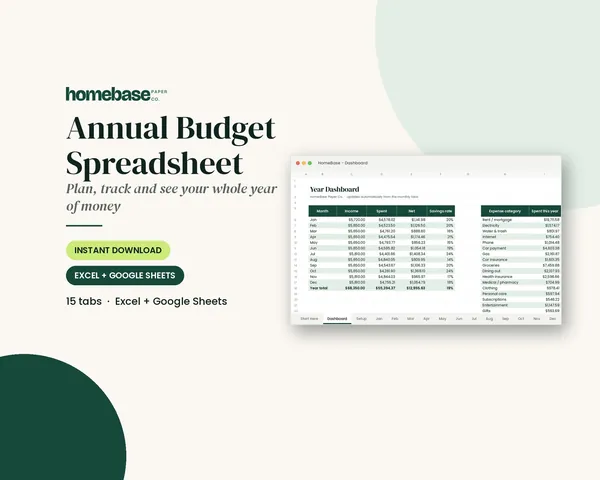
Annual Budget Spreadsheet
See exactly where your money goes every month - without complicated software.
Spreadsheets
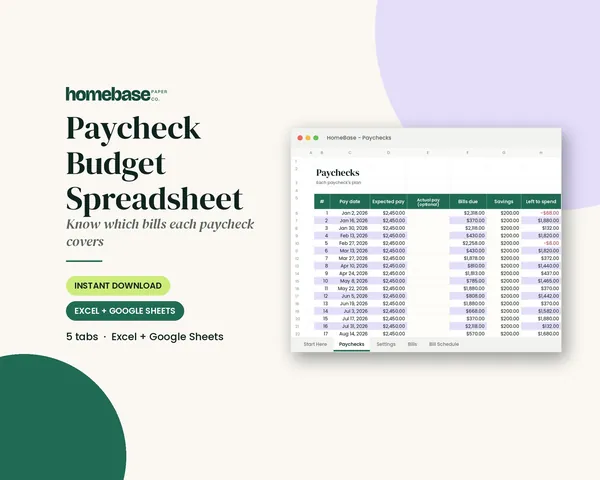
Paycheck Budget Spreadsheet
Enter your bills once. The sheet tells you which paycheck pays each one, all year.
Frequently asked questions
How do I make a simple budget spreadsheet? Make three tabs (Setup, Transactions and Budget), list your take-home pay and categories, then let SUMIF total your spending by category. Add a Planned column and a Left column that subtracts actual spending from the plan. A basic version takes about an hour in Excel or Google Sheets. Or start from our Zero-Based Budget Spreadsheet, which comes with the formulas already set up.
What formulas do I need for a budget spreadsheet? You need three formulas: SUM, SUMIF and simple subtraction. SUM totals your income and planned amounts, SUMIF adds up every transaction in a category, and Planned minus Actual shows what's left. SUMIFS is optional if you want to pull one month's spending from a full year of transactions.
Is Google Sheets or Excel better for a budget spreadsheet? Both work equally well for a personal budget, and every formula in this guide runs in both. Google Sheets is free and easy to share with a partner. Excel is included with Microsoft 365, and a free web version is available with a Microsoft account. Pick the one you'll actually open every week.
What columns should a budget spreadsheet have? A budget spreadsheet needs four columns: Category, Planned, Actual and Left. Your transaction log needs Date, Description, Category and Amount. Anything beyond that, like notes or payment method, is optional.
What categories should I put in my budget spreadsheet? Start with 10 to 15 categories that match how you actually spend: housing, utilities, groceries, transportation, insurance, debt, savings and a little fun money. Too many categories make logging tedious, and too few hide where the money goes. Our budget categories list is a good starting point.
How do I make a budget spreadsheet track spending automatically? Log each purchase on a Transactions tab and use SUMIF on the Budget tab to total each category. Every time you add a row, the Actual and Left columns update on their own. A dropdown list for the Category column keeps the totals accurate. Our Zero-Based Budget Spreadsheet comes with these formulas already set up.
How do I add a dropdown list to a budget spreadsheet? You can add a dropdown list to a budget spreadsheet in Google Sheets by selecting the Category column and choosing Insert > Dropdown. In Excel, choose Data > Data Validation and pick List. Point either one at your category list on the Setup tab so every transaction uses an exact category name.
How do I show overspending in red? Use conditional formatting on the Left column with a rule for values less than zero. In Google Sheets it's under Format > Conditional formatting, and in Excel it's Home > Conditional Formatting > Highlight Cells Rules > Less Than.
Should I use a monthly or yearly budget spreadsheet? Most people budget month by month but keep a full year in one file. You can duplicate a Budget tab for each month, or keep every transaction on one tab and use SUMIFS with dates to pull each month. The Annual Budget Spreadsheet ($6.99) already has 12 monthly tabs and a year dashboard set up.
What is a zero-based budget spreadsheet? A zero-based budget spreadsheet assigns every dollar of income to a category until "left to budget" equals zero. The Zero-Based Budget Spreadsheet ($6.99) has a Left to budget counter on every month that turns green when you hit zero, so you don't have to build that check yourself.
How do I budget by paycheck in a spreadsheet? List each paycheck as its own column and assign each bill to the paycheck that comes before its due date. The Paycheck Budget Spreadsheet ($5.99) does this automatically for weekly, biweekly, semi-monthly or monthly pay, so you can see a tight pay period weeks ahead.
Is there a ready-made budget spreadsheet I can use instead? Yes, HomeBase sells ready-made budget spreadsheets you can use instead. The Zero-Based Budget Spreadsheet, Annual Budget Spreadsheet and Paycheck Budget Spreadsheet come with the formulas, dropdowns and alerts already built, and each works in Excel and Google Sheets. The Ultimate Budget Bundle ($19.99) includes all six of our budget spreadsheets plus two printable planners.
How often should I update my budget spreadsheet? Log spending two or three times a week, and review the whole budget once a month. Short, regular updates keep the numbers accurate and take about 10 minutes. At the end of each month, look at red cells and adjust next month's plan.
Why does my SUMIF formula show zero? A SUMIF that returns zero usually means the category names don't match exactly or the amounts are stored as text. Check for typos and extra spaces, use a dropdown for categories, and make sure the Amount column is formatted as numbers.
Are there free budget spreadsheet templates? Free budget spreadsheet templates come built into both Google Sheets, in its template gallery, and Excel, when you create a new workbook. You can also build your own free template with the 8 steps in this guide and copy the monthly tab each month.
More from HomeBase
You may also like
Printables
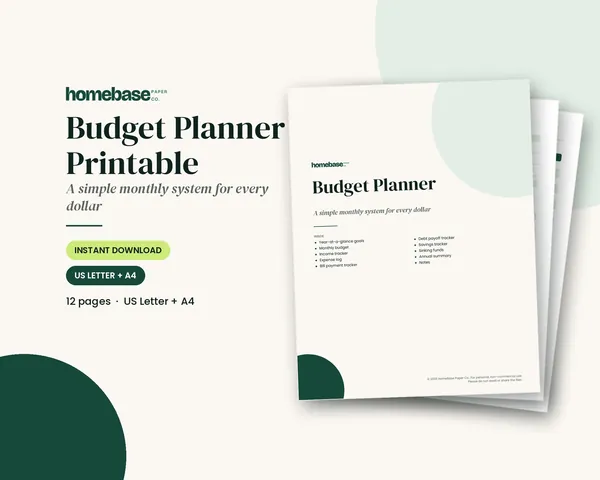
Budget Planner Printable
Twelve undated pages you can print every month: budget, bills, spending, savings and debt.
Spreadsheets
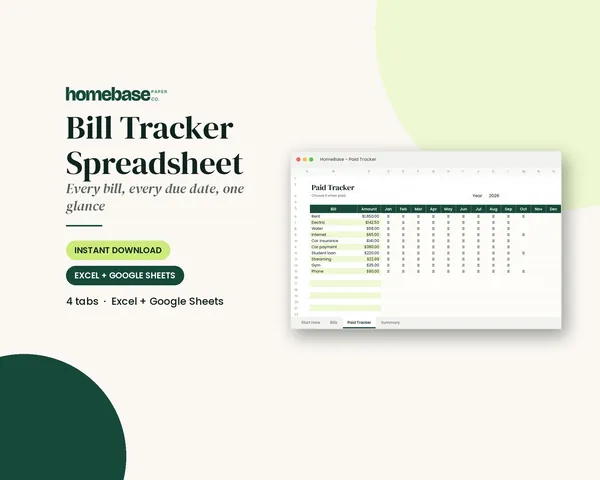
Bill Tracker Spreadsheet
Bills due in 3 days or less light up red, so nothing slips through.
Spreadsheets
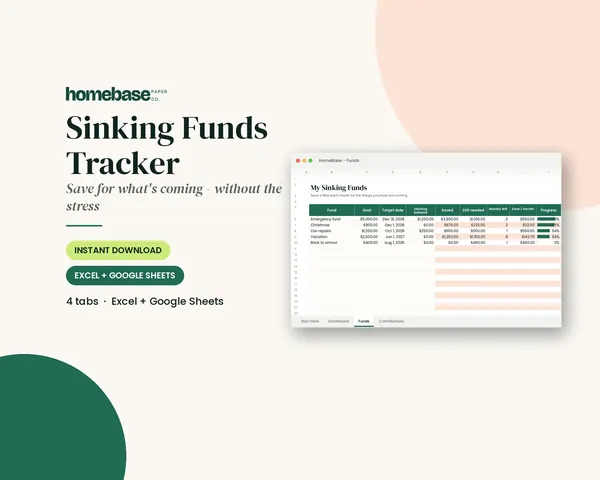
Sinking Funds Tracker
It does the math: how much to set aside each month to hit every goal on time.
Spreadsheets
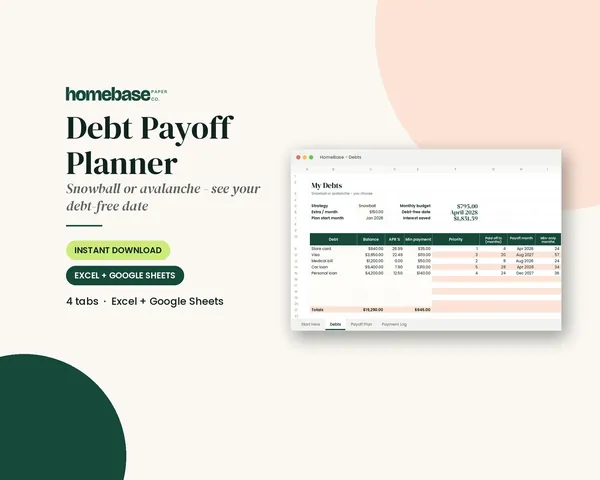
Debt Payoff Planner
Pick snowball or avalanche, add any extra payment, and get your debt-free month instantly.
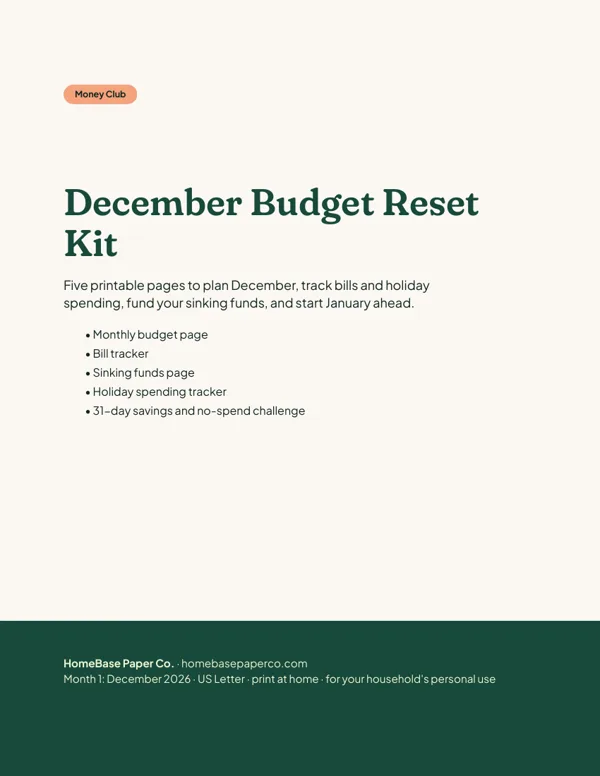 Club
Monthly club
Money Club
Anyone who wants a clear plan for the month's bills, holiday spending and savings.
Free printable
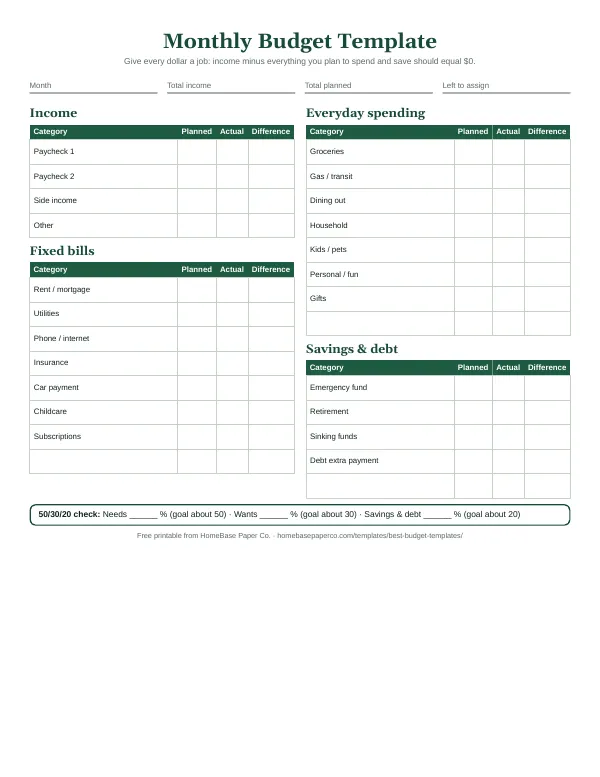
Give every dollar a job: get the free monthly budget template
A printable zero-based monthly budget: income, bills, everyday spending and savings on one page, with a planned vs. actual column. You'll also get our weekly HomeBase email with simple budgeting and bill-paying tips.
Sources
- Step-by-step budgeting guide consumerfinance.gov
- Microsoft's SUMIF guide support.microsoft.com
- Google's SUMIF help page support.google.com